 Skip to content

I recently discovered Copilot Tasks, a cloud-based automation tool that handles multi-step routines in the background—even when your computer is off. To test its potential for improving productivity, I ran a simple experiment: I built a workflow to scan my Gmail for invoices and automatically sync due dates to my Google Calendar.
What makes this a game-changer for streamlining your workflow is that it requires no code and no new software installations. You can offload repetitive mental clutter to the cloud, ensuring your schedule stays updated without you ever lifting a finger.

Let’s Create the Task
1. Describe the automation in natural language
You told Copilot:
“Scan Gmail for bill/invoice emails from the past 7 days and create events on my Payment Google Calendar.”
2. Copilot interprets the workflow
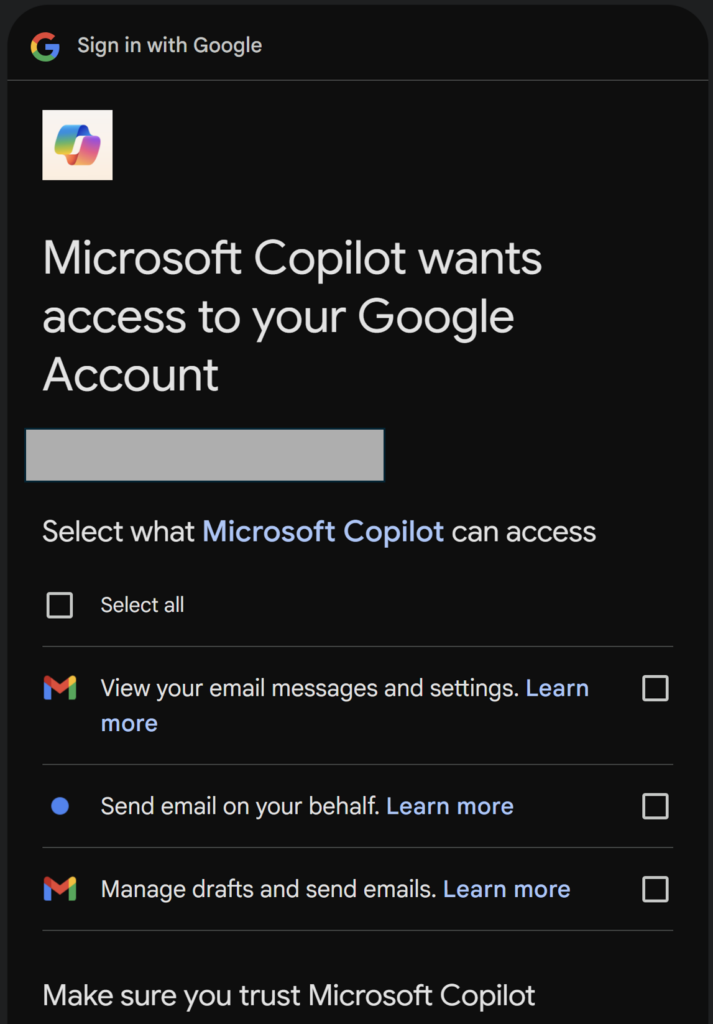
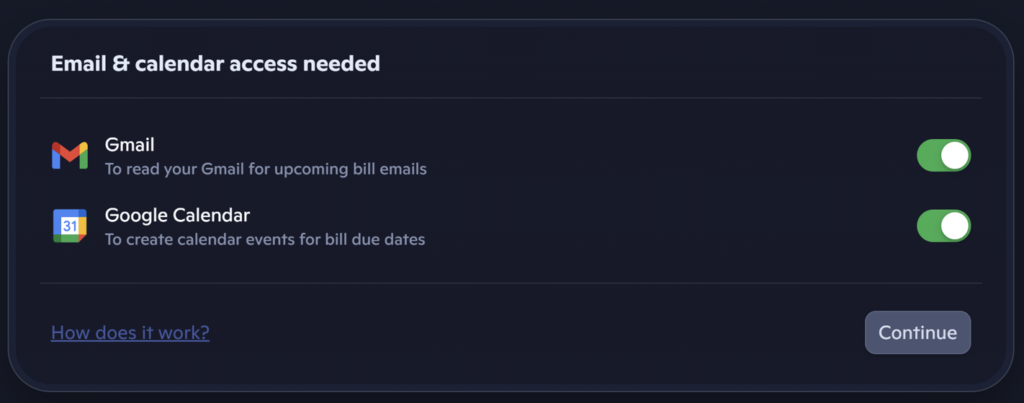
It identifies required connectors, and permission prompts appear:
- “Allow Copilot to read your Gmail”: Gmail (to read emails)
- “Allow Copilot to create events in Google Calendar”: Google Calendar (to create events)
3. Copilot generates a task card
The card summarizes:
- What the task will do
- When it will run
- What services it needs access to
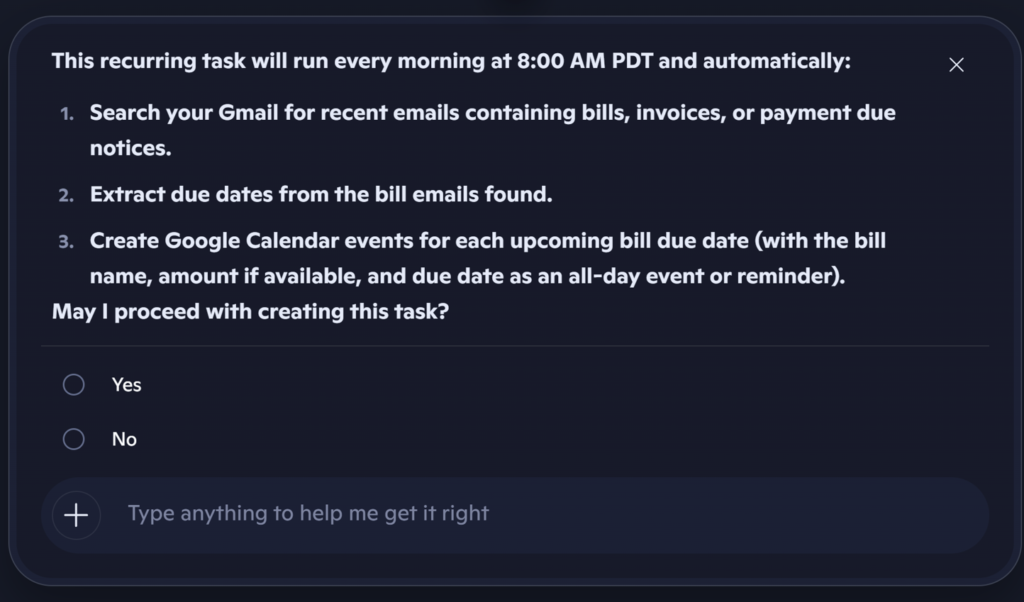
4. You approve the permissions
Copilot start to create the task and show the result. The task becomes active and begins running on its schedule.
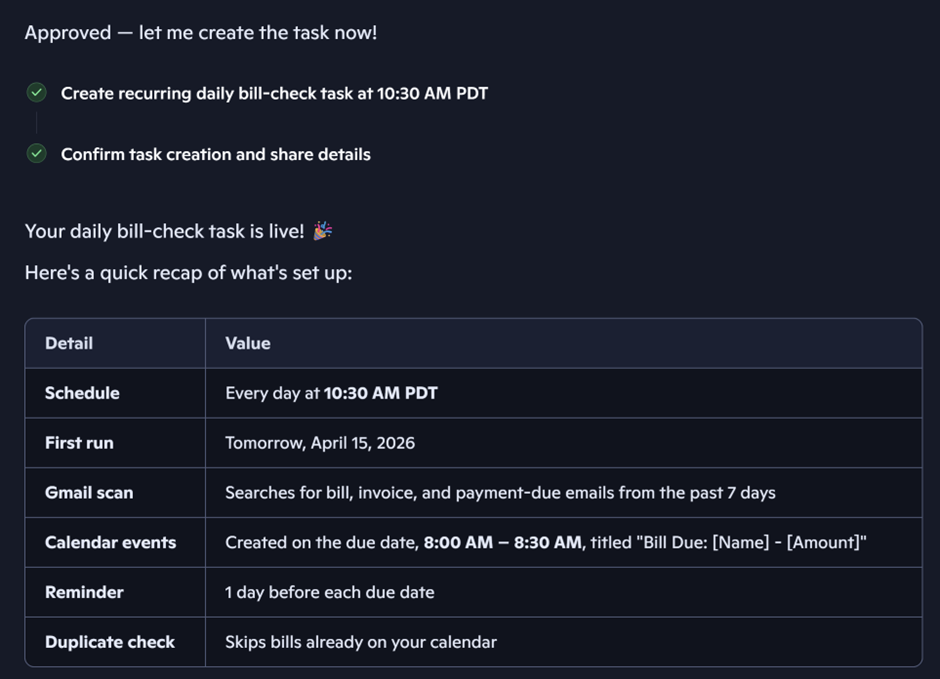
The automation runs independently on Copilot’s servers, not your device. You don’t need to keep Copilot open. The task simply executes on schedule and reports back when it’s done.
What Are the Outcomes?
Daily Gmail scanning
- Looks back 7 days
- Detects bill/invoice emails
- Extracts due dates and vendor names
Automatic calendar event creation
- Creates events on your Payment Google Calendar
- Time: 8:00–8:30 AM
- Reminder: 1 day before
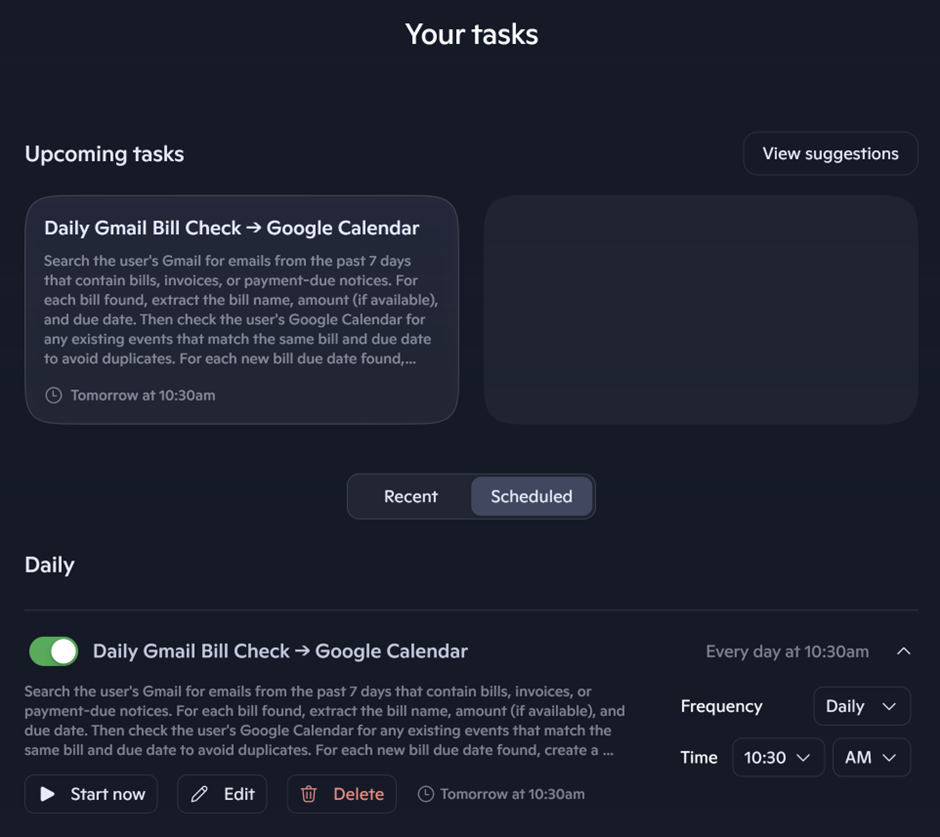
You can now find the new task card in your Copilot Tasks tab:
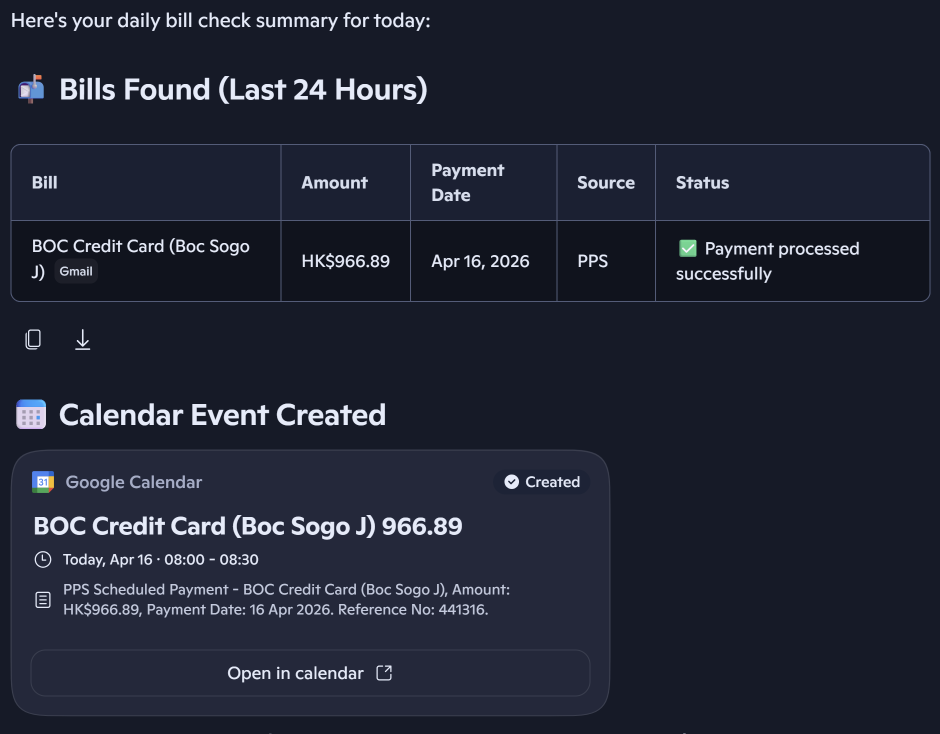
After the task completes, you’ll see the report:
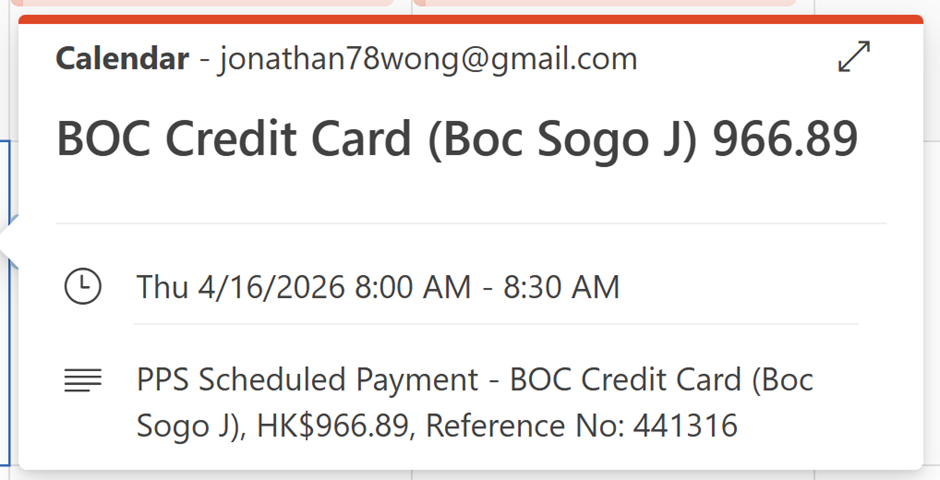
and the newly created event in your calendar:
Manage Tasks Status
To pause, resume, and remove tasks
In tasks tab you can ask Copilot to:
“List my scheduled tasks” — see all active tasks
“Pause my bill check task” — temporarily stop it
“Delete my bill check task” — remove it entirely
To modify the task:
“Modify my bill check task to scan 14 days instead of 7.”
“Update my bill task to add a 2‑day reminder.”
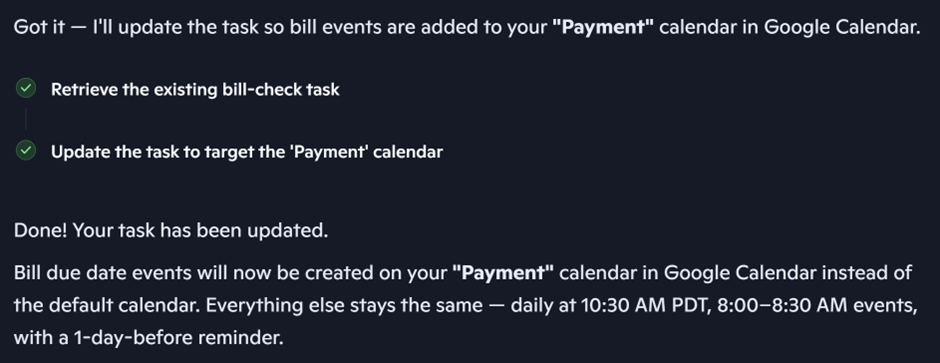
“Change the calendar to ‘Finance’ instead of ‘Payment’.”
Copilot will regenerate the task card with updated logic.
Manage Task Permissions
You can review and manage task permissions through the Sources and Connectors section in Copilot. This lets you see exactly which accounts and data the task relies on.
Option 1: Copilot Dashboard
Click the Sources and Connectors icon in the Copilot dashboard message bar. It shows a full list of all accounts and data sources your task is currently using.
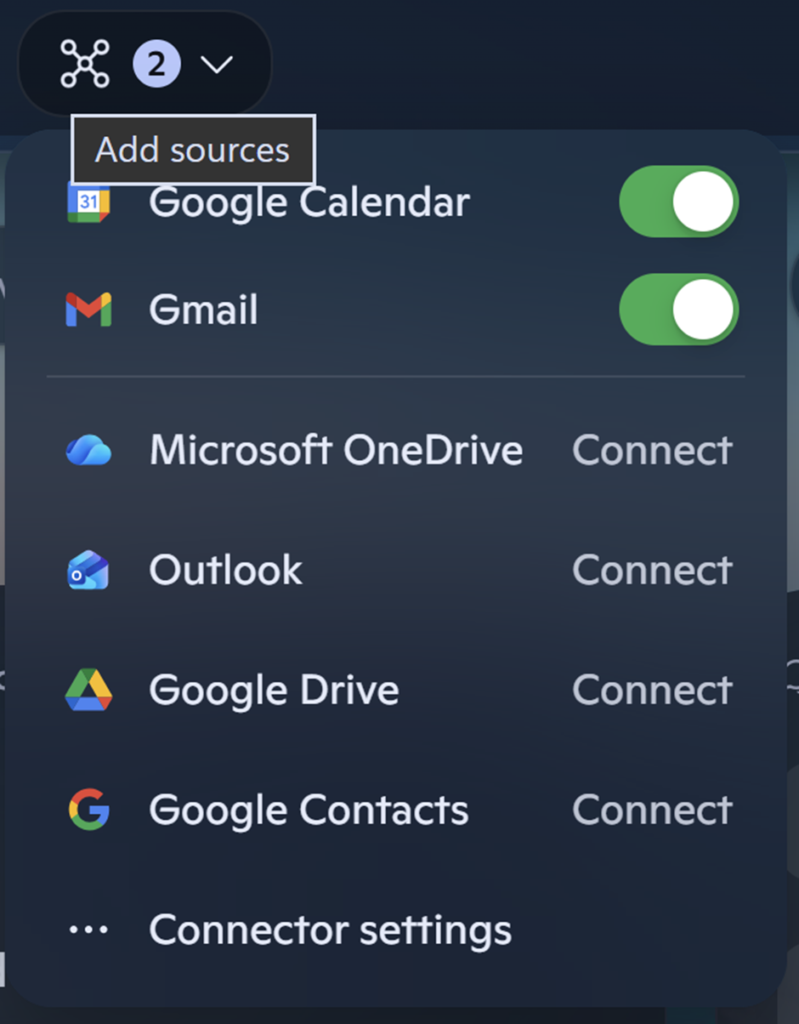
Select the “Connector settings” button to view all connector details associated with the task.
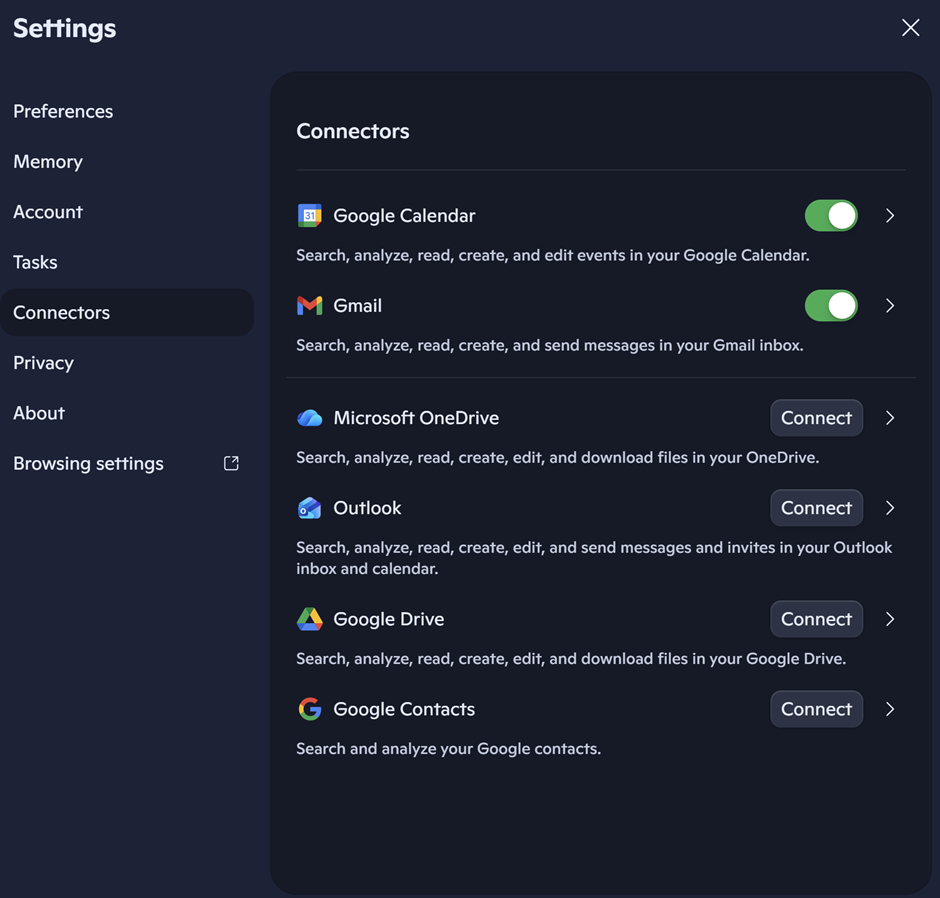
Option 2: Ask Copilot
In the message bar, type “Show me the connectors used in my bill check task.” Copilot will return a list of all connectors the task currently uses.
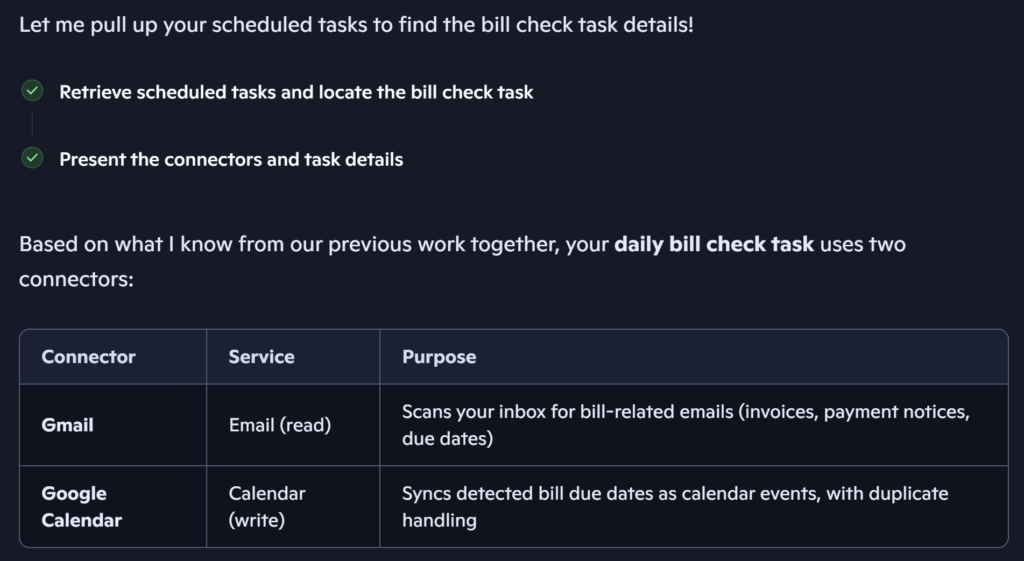
If you want to revoke Gmail or Google Calendar access, go to:
https://copilot.microsoft.com→ Settings → Connected Accounts
There you can:
- Disconnect Gmail
- Disconnect Google Calendar
- Remove all scopes previously granted
Once removed:
- The task will fail gracefully
- Copilot will notify you that access is required
- You can re‑grant permissions anytime
Key Takeaway
My first trial of Copilot Tasks reveals that Microsoft is quietly building a powerhouse cloud-native automation engine. Unlike traditional tools, it executes multi-step workflows independently, freeing your local machine from the heavy lifting. Best of all, it’s a pure no-code solution—meaning no new software installations or technical overhead for business users. While the performance is already robust, keep in mind it’s still in research preview, so expect the UI and features to evolve as the rollout expands.
What’s better:
- Operational Clarity: Specifically highlights that it frees up local resources, which is a major win for productivity.
- Business-Ready: Directly addresses the “no-code, no-install” requirement as a way to remove friction.
- Active Language: Uses “reveals” and “powerhouse” to give the discovery more impact.
- Permissions are transparent: You can modify, pause, or delete tasks and connectors anytime. Easy to manage.
About the Author
Jonathan Wong is an IT and AI consultant with 20+ years of experience leading engineering teams across Vancouver and Hong Kong. He specializes in modernizing legacy platforms, cloud security, and building AI-ready systems for startups and large enterprises while advising leadership on using strategic technology to drive business growth.
Connect with me on LinkedIn